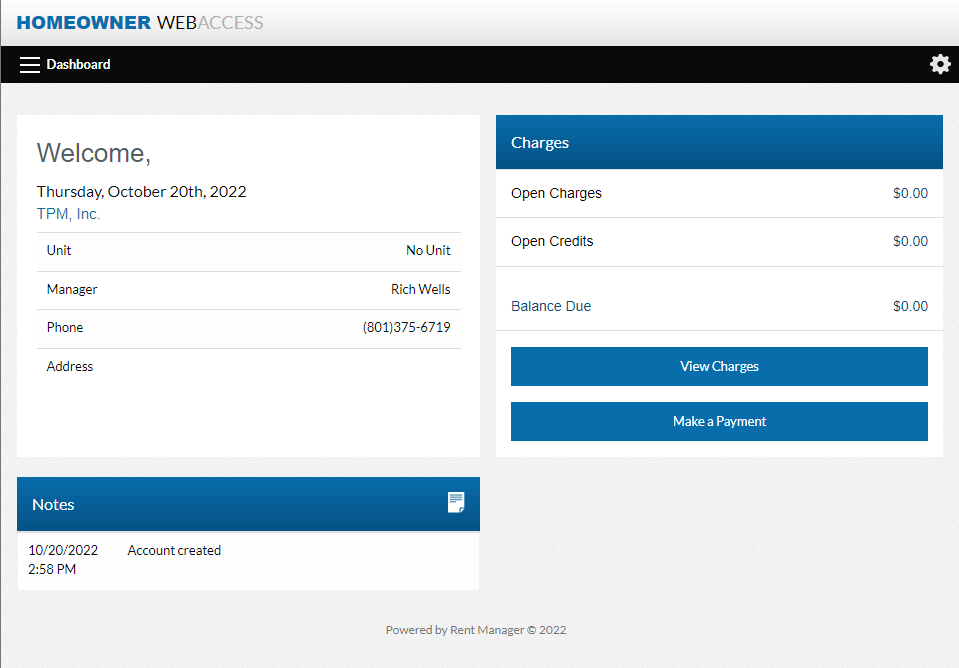
Once you’ve submitted your information to the New Owner Web Portal Setup Page, received the email that lets you set up your password and gets you to this page below follow the steps to set up auto-pay
First let’s click on make a payment (Above)
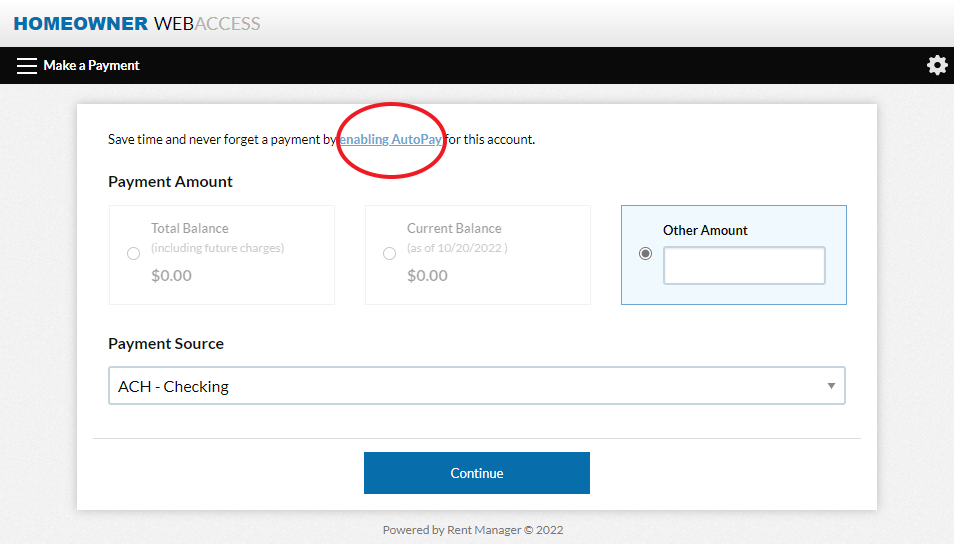
Then Click on enabling AutoPay (Red Circle in image Below)
Then we’ll be on the payment settings page. (Below)
Fill in your preferred payment method on the left hand side.
Be aware Credit and Debit card payments come with a 3% Processing fee
Then select the checkbox next to Enable your automatic payment (Circled below in Red)
Most HOAs are due on the first so that is best to leave at the 1st for the Day of Month selector
Also it is best to leave Payment Type at Total Balance Due to avoid any fines
For the Max Amount box it is best to leave this blank unless you have a Special Assessment due and you don’t want it all pulled at once.
There is one more checkbox on the right straight below Enable your automatic payments box.
Select this just to confirm you’ve read all the notes below it confirming you are aware of the terms.